
Set Up Office 365 Email on iPhone or iPad
On this page
Use these steps to add your Office 365 email account to an iPhone or iPad using the Exchange account type.
Configure Office 365 Email on iPhone or iPad
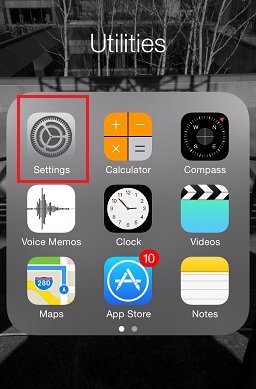
- From the home screen, tap the Settings icon.
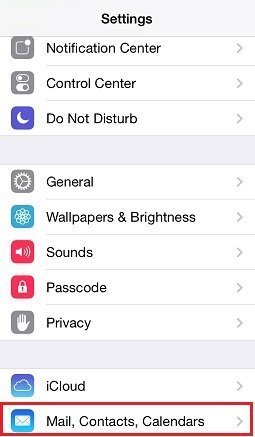
- On the Settings screen, scroll down and tap Mail, Contacts, Calendars.
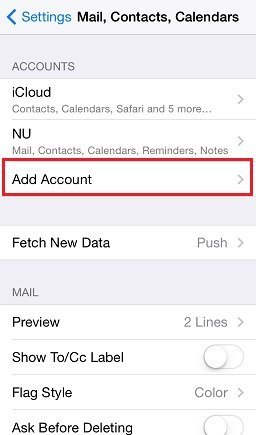
- Tap Add Account to add a new email account.
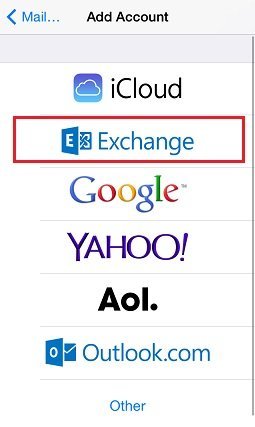
- Tap Exchange.
- On the Exchange configuration screen, enter the following details, then tap Next:
- Email: your full email address
- Password: your password
- Description: any description you want to use for the account
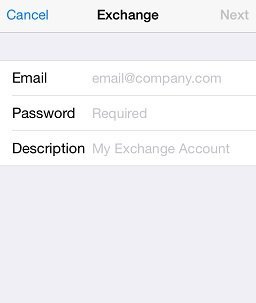
- In most cases, your email account will configure automatically. If you see Unable to Verify Certificate or a similar message, tap Accept and continue.
- If a second Exchange configuration screen appears, enter the following details:
- Email: your full email address
- Server: outlook.office365.com
- Domain: leave blank
- Username: your full email address
- Password: your password
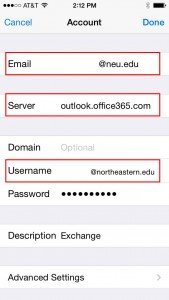
When finished, tap Done. - If everything was entered correctly, the final configuration screen appears. By default, the iPhone syncs Mail, Contacts, Calendars, and Reminders. Turn off any items you do not want to sync, then tap Done to finish setting up the account.
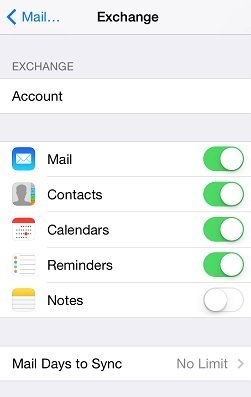


Your Office 365 email account is now configured on your iPhone or iPad. Email should begin synchronizing shortly.
Was this article helpful?
Thanks for your feedback!