
Call Parking and Retrieval
Call parking lets you put a call into a shared “slot” that any phone in the office can pick up — useful when you need to hand a call off without an attended transfer, or when you have to walk away from your desk and grab the call from another phone. EMAK Telecom call parks work on Yealink desk phones and on the EMAK softphone (and Groundwire, with manual setup). They are not available on cordless handsets.
How Call Parks Work
Each park is a virtual slot, accessible by all phones that have the matching BLF key configured. Slots correspond to extensions:
- Park 1 →
park+*5901 - Park 2 →
park+*5902 - … and so on for additional slots.
The BLF key shows green when the slot is free. When a call is parked there, the key turns red. Pressing a red park key on any phone retrieves the parked call.
When a parked call is retrieved, the caller ID shows the park slot it came from (e.g. park+*5901) so the receiving party knows which slot the call was held in.
When to Use Call Parking
- Alternative to attended transfer. Park the call, walk over (or call) the destination person, and let them choose to pick up the parked call.
- Move to another phone mid-call. Park the call on Phone A, walk to Phone B, and retrieve the parked call there.
Park and Retrieve on a Yealink Desk Phone
- While on a call, press a green (available) park key on your phone — this example uses Park 1.
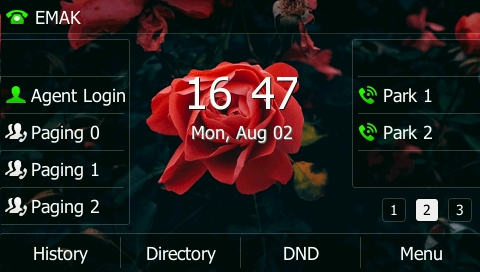
- The park key turns red, indicating the slot now holds a parked call.
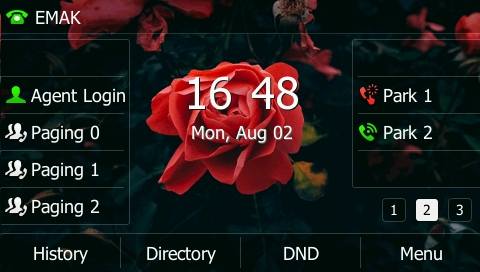
- From any phone with the same park key configured, press the red key to retrieve the call. The slot turns green again, ready for the next park.
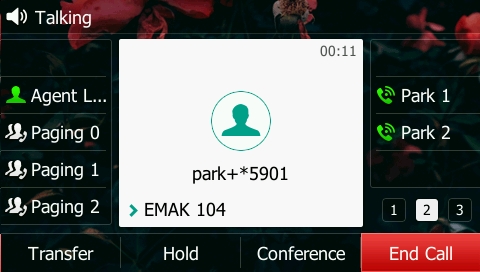


Limitation: cordless handsets cannot park or retrieve parked calls. Plan workflows around the desk phones and softphones.
Park and Retrieve on the EMAK Softphone
- In the EMAK softphone, add a contact called Park 1 with number
park+*5901. Tick the Presence Subscription checkbox so the softphone tracks whether the slot is in use.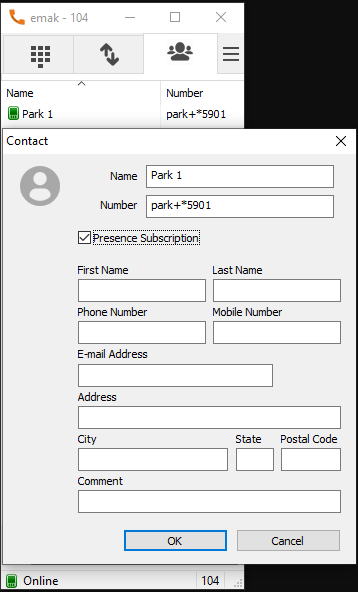
- To park a call, use the transfer button and choose the Park 1 contact from the drop-down during a live call.
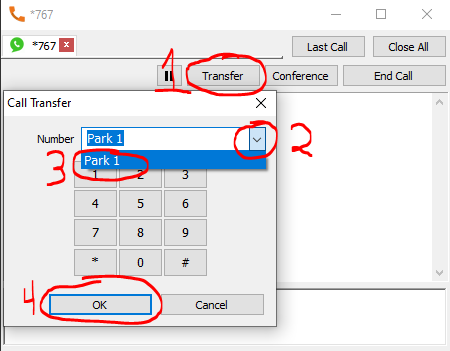
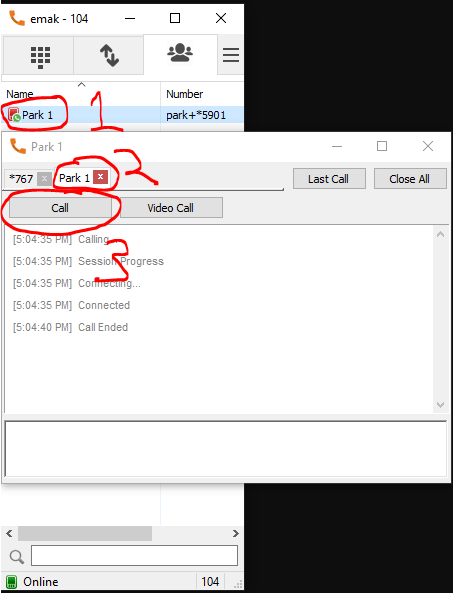
- To retrieve a parked call, double-click the Park 1 contact (it will be red / on-call) and then click Call.


Park and Retrieve on Groundwire
You can replicate the same workflow on the Groundwire mobile app:
- Open the Favorites tab (the star icon, first tab) and create a new entry. Set Title to “Park 1”, Number or SIP address to
park+*5901, and toggle on Busy Lamp Field.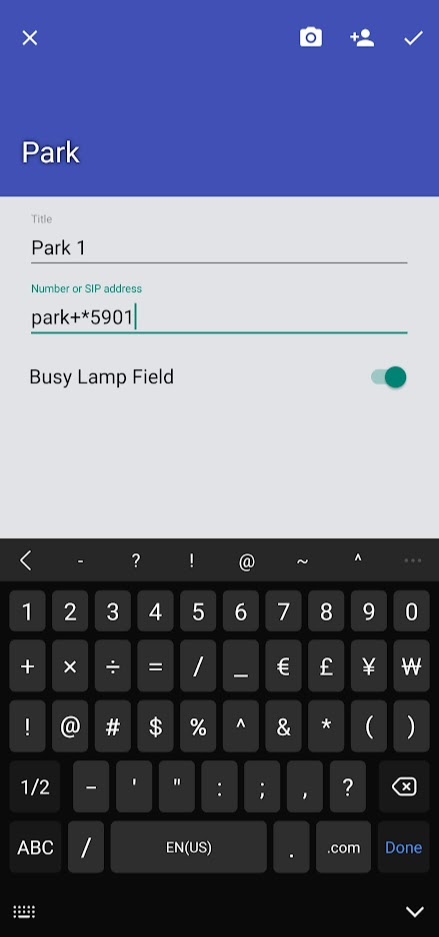
- The new “Park 1” favorite appears.
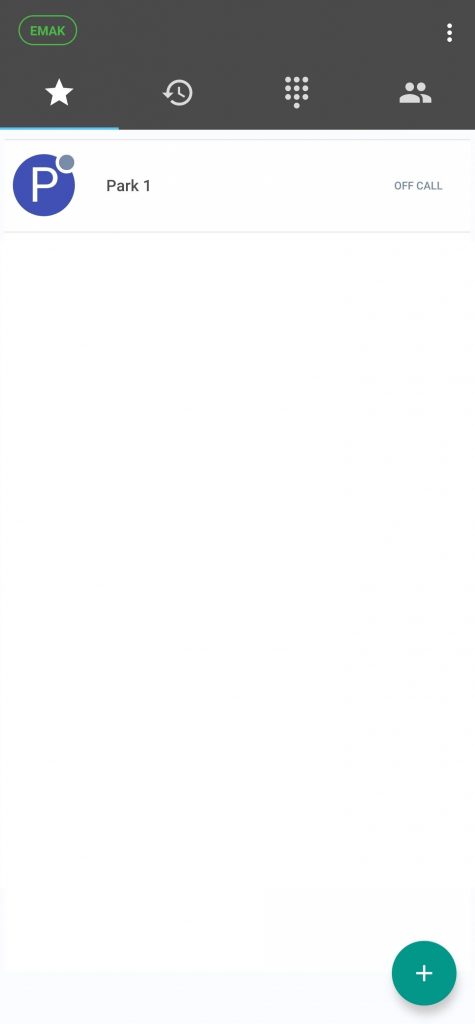
- To park, use Groundwire’s Transfer feature during a call:
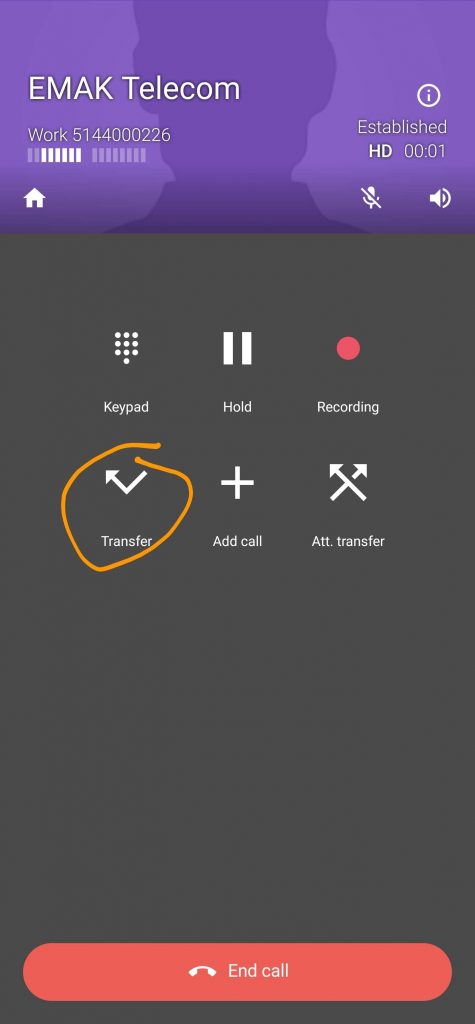
- Pick Park 1 from Favorites and the call transfers into the park slot.
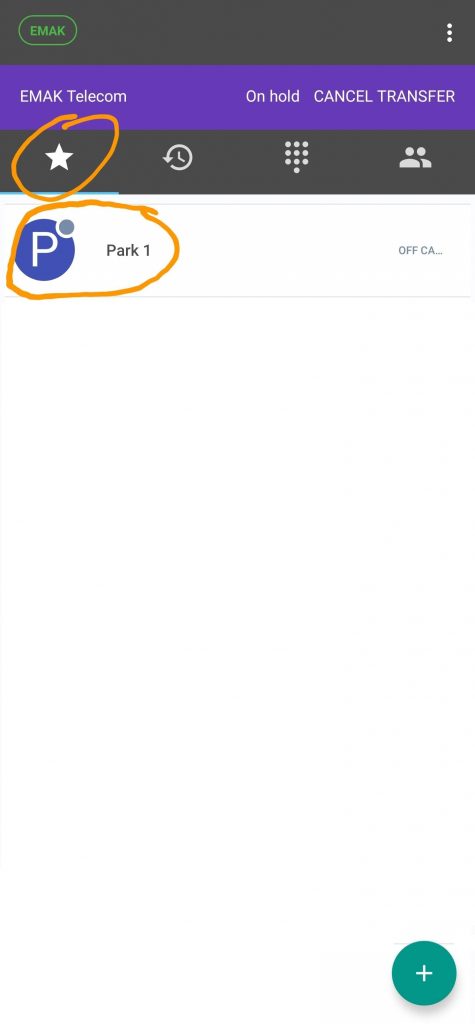
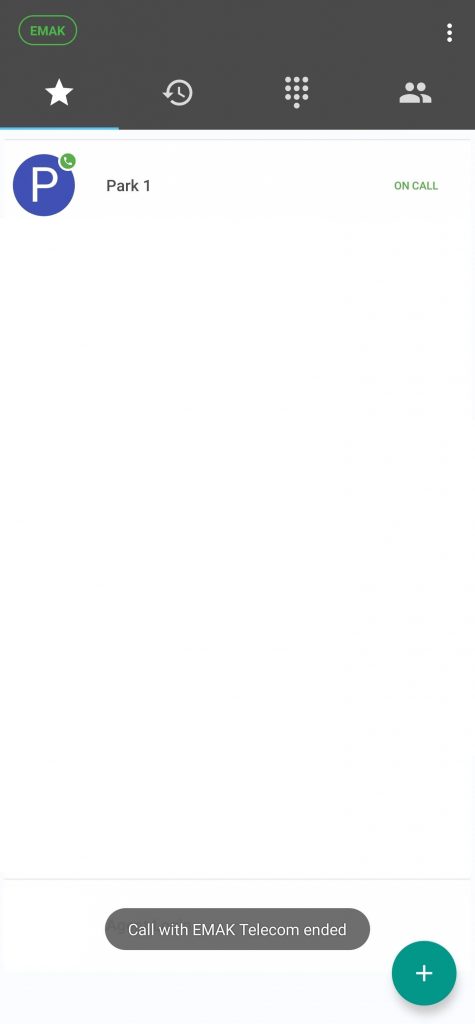
- Park 1 then shows “ON CALL”, indicating it is in use. Status reliability is not guaranteed on mobile networks — the indicator depends on a stable data connection.


Call Parking FAQ
How long does a call stay parked before it returns?
By default, a parked call rings back to the original phone after a configurable timeout (commonly a few minutes). Your administrator can adjust the timeout per account.
What’s the difference between park and hold?
Hold keeps the call locked to your phone — only you can pick it back up. Park puts the call into a shared slot that any phone with the matching BLF key can retrieve. See put a call on hold for the local-hold feature.
I do not see Park keys on my phone.
Park keys must be configured by your administrator on each phone that should be able to use them. Ask your administrator to add the park keys, or see add BLF and speed-dial keys.
Can I have more than two park slots?
Yes — additional slots follow the same pattern: park+*5903 for Park 3, park+*5904 for Park 4, and so on. Your administrator configures how many slots are active.
Can two people park calls into the same slot at the same time?
No — once a slot is red, parking another call to it will fail or retrieve the existing call. Use a separate slot per parked call.