
Edit a Phone Menu
On this page
A phone menu is the recording that asks callers to press a key, such as “for sales, press 2”. This article shows how to change where a key sends callers, add a key, or remove one.
Before You Start
You need administrator access to the EMAK Web App (Sign In to the EMAK Web App).
Open the Menu
- Sign in at client.emaktalk.com.
- In the left menu, under Call Routing, click Phone Menus.
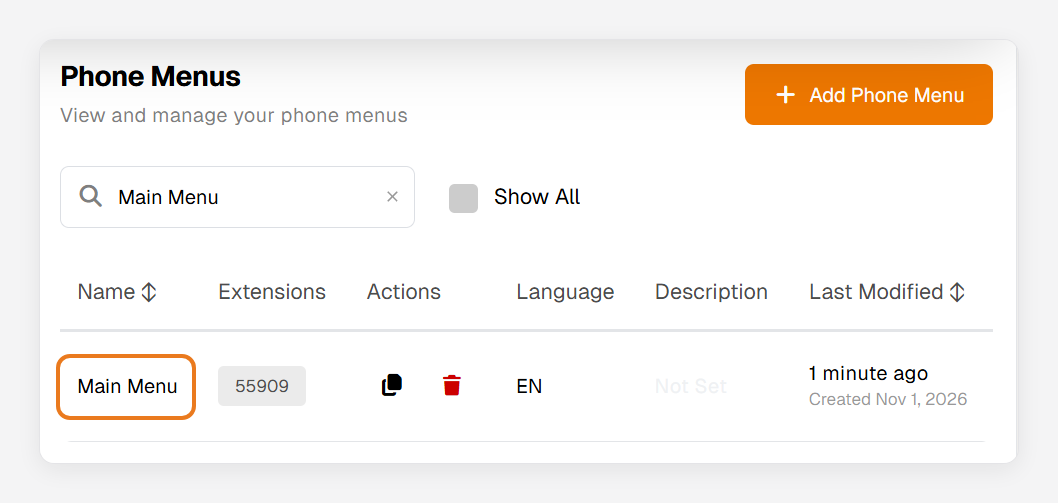
- Click the menu’s name.
Change Where a Key Goes
- Under Menu Options, click the destination next to the key.
- Search for the new destination and select it. It can be an extension, a ring group, a voicemail box or another menu.
- Click Save at the top right. The next caller goes to the new destination.
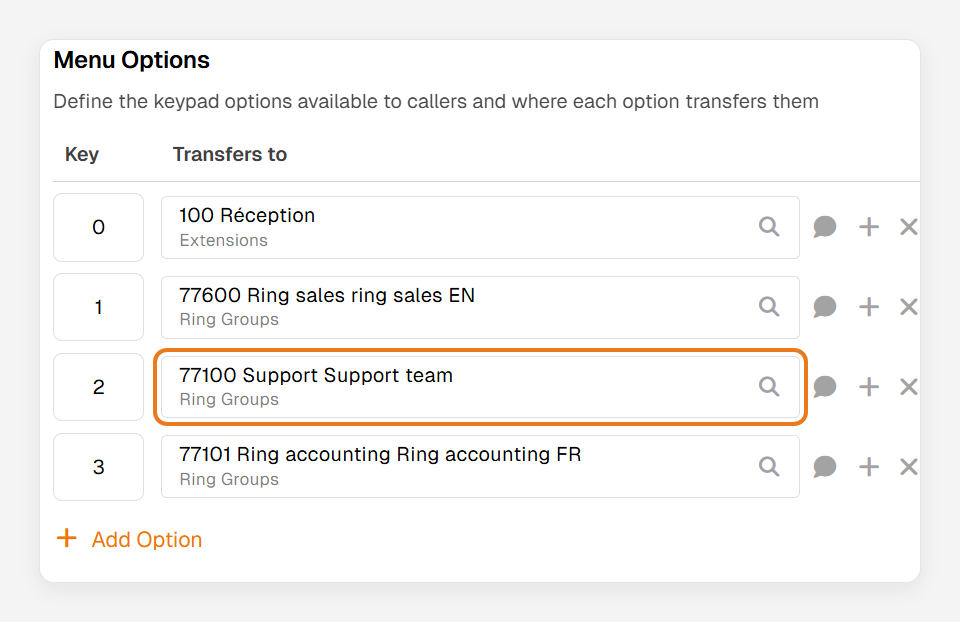
Moving calls away from someone? Change the key’s destination instead of removing the key. Your greeting still tells callers to press it, and a removed key does nothing.
Add a Key
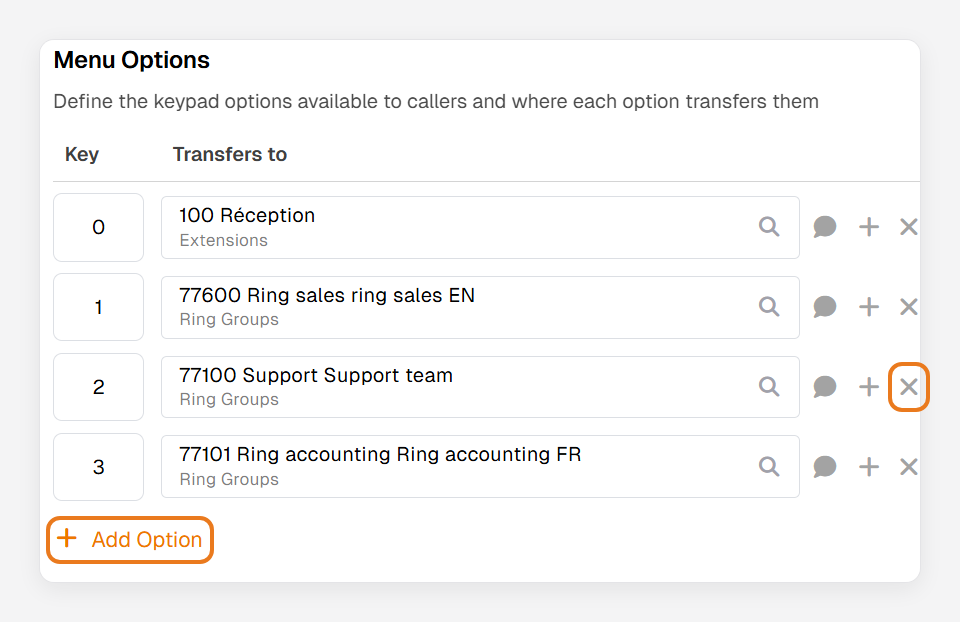
- Click + Add Option.
- Type the key, then choose where it goes.
- Click Save, and make sure the greeting announces the new key.
Remove a Key
- Click × on the key’s row, then Save.
- Update the greeting so it no longer offers that key. You can pick a new greeting under Greeting on the same page.
Related Articles
How to Create a Ring Group · Create a Recording with Speech Studio · Call Analytics in the EMAK Web App
Was this article helpful?
Thanks for your feedback!