
Call Analytics in the EMAK Web App
The Analytics page in the EMAK Web App shows how your phone line is doing: how many people called, how many were answered, who reached voicemail and who left a message, when your busiest hours are, and whether missed callers were called back. You can click any number or bar to see the calls behind it, and follow each call step by step.
Before You Start
Analytics is available to administrators of your account in the EMAK Web App. If you don’t have a login yet, or you don’t see Analytics under Reports, ask your account administrator or contact us at [email protected].
Open Analytics
- Sign in to the EMAK Web App at client.emaktalk.com. If you have not signed in before, see Log In to the EMAK Web App.
- In the top menu, click Reports, then Analytics.
Once you are signed in, you can also go straight to https://alpha.emaktalk.com/app/reports/analytics.
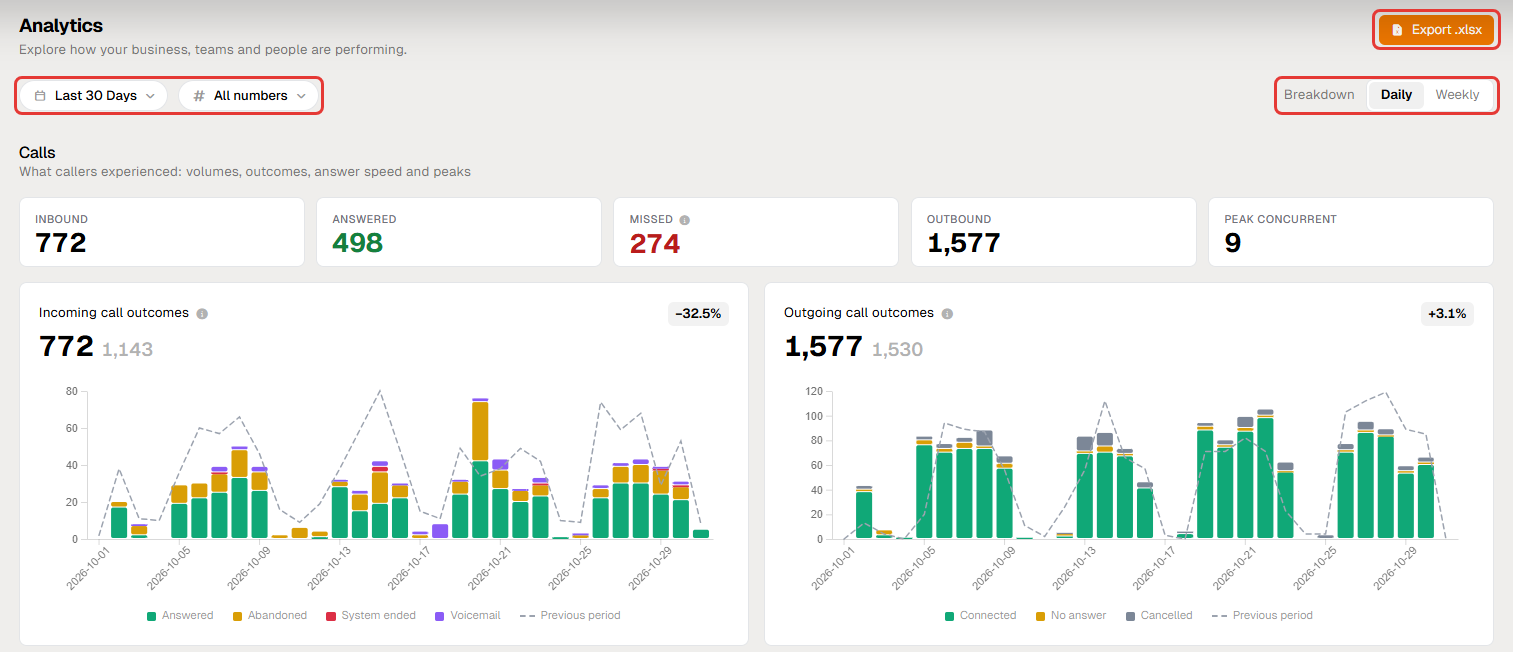
Choose What to Look At
- Period: click the date button to pick Today, Yesterday, This Week, Last 30 Days, Last Month and more, or select your own dates on the calendar and click Apply.
- Numbers: click All numbers to look at one or more of your phone numbers only. Incoming calls are matched on the number the caller dialled.
- Breakdown: show the charts Daily or Weekly.
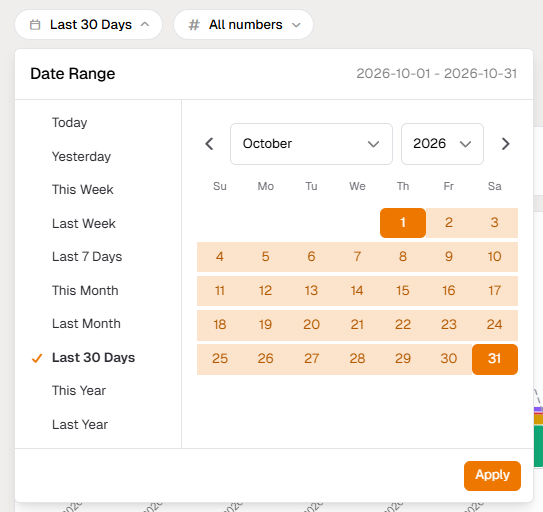
Times are shown in your account’s time zone. Most charts also show the previous period as a dashed line, with the change in percent, so you can compare this week with the weeks before.
Calls at a Glance
The five tiles at the top summarise the period:
- Inbound: calls people made to your numbers.
- Answered: incoming calls someone on your team picked up.
- Missed: incoming calls nobody answered, including callers who reached voicemail.
- Outbound: calls your team placed.
- Peak concurrent: the most calls in progress at the same time.
Click a tile to see the calls behind it.
What Happened to Your Callers
Incoming call outcomes shows, for each day or week, what callers got:
- Answered: someone picked up.
- Abandoned: the caller hung up before anyone answered, for example while the phone was ringing or while a greeting was playing.
- Voicemail: the call reached a voicemail box. In the Missed calls list further down, a voicemail icon shows the callers who actually left a message.
- System ended: the phone system ended the call, for example after a menu got no choice or when no destination was set for that time.
Outgoing call outcomes does the same for calls your team placed: Connected, No answer and Cancelled.
See the Calls Behind Any Number
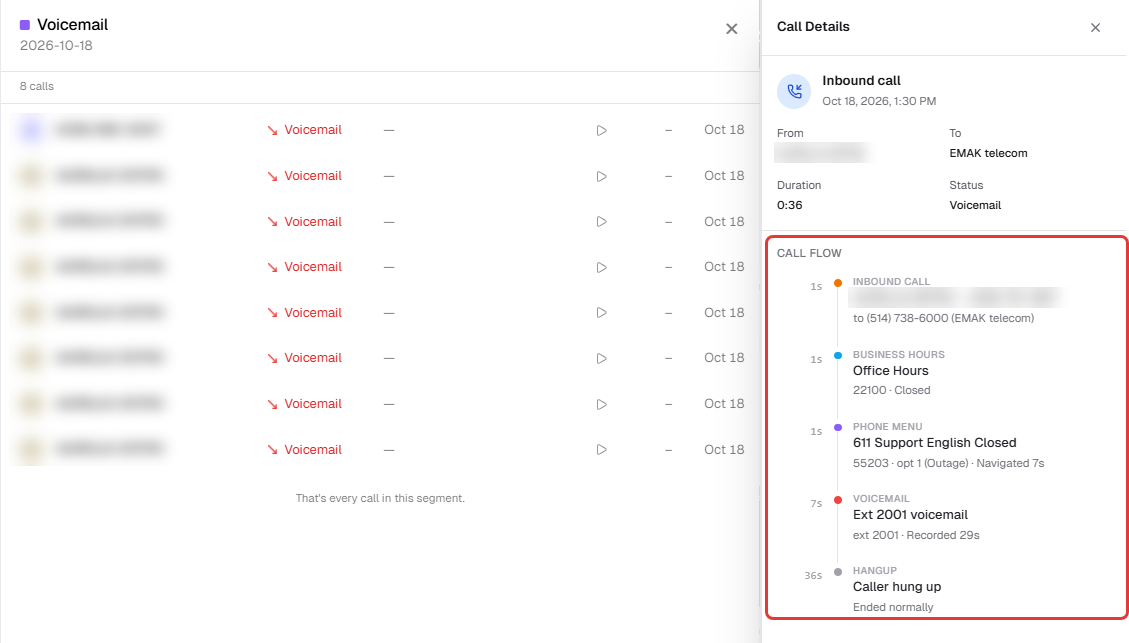
Click any part of a bar to open the list of those calls. Click a call to open Call Details: who called, which number they dialled, how long it lasted, and the Call flow step by step, such as whether you were open or closed, which menu option the caller pressed, which voicemail box they reached and when they hung up. If the call was recorded, you can play the recording from the list.
How Long Calls and Waits Last
- Talk time distribution: how long your conversations lasted, from under 10 seconds to over 30 minutes.
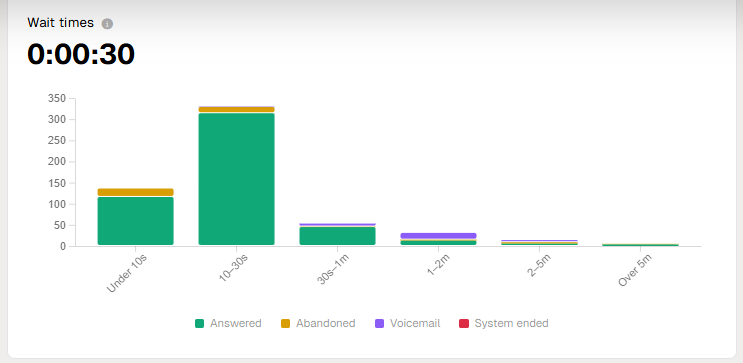
- Wait times: how long callers waited for someone to pick up, and what they got in the end. Time spent listening to a phone menu is not counted as waiting.
- Talk minutes: the total time spent on the phone, incoming and outgoing together.
- Concurrent calls: the most calls happening at the same time, which tells you how many lines your business needs.
Your Busiest Times
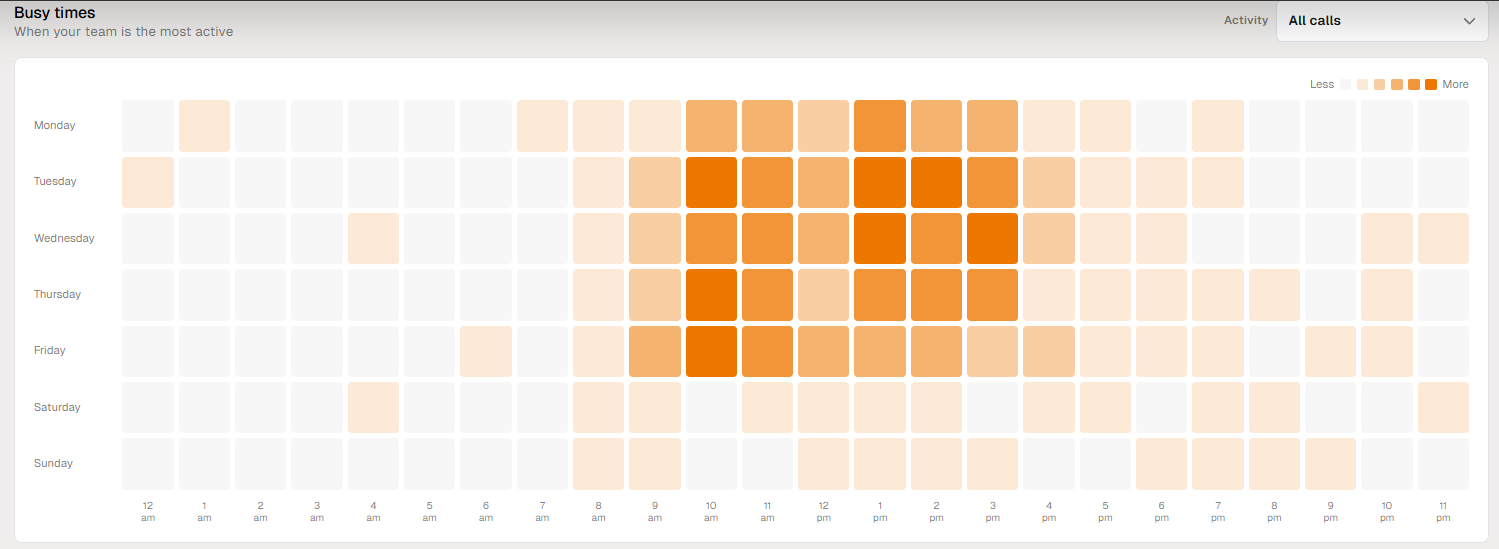
Busy times is a grid of days and hours. The darker the square, the more calls in that hour. Use the Activity menu to show all calls, incoming calls only, answered calls, voicemail, abandoned calls or outgoing calls. It’s a quick way to see when you need more people answering the phone.
Team Performance
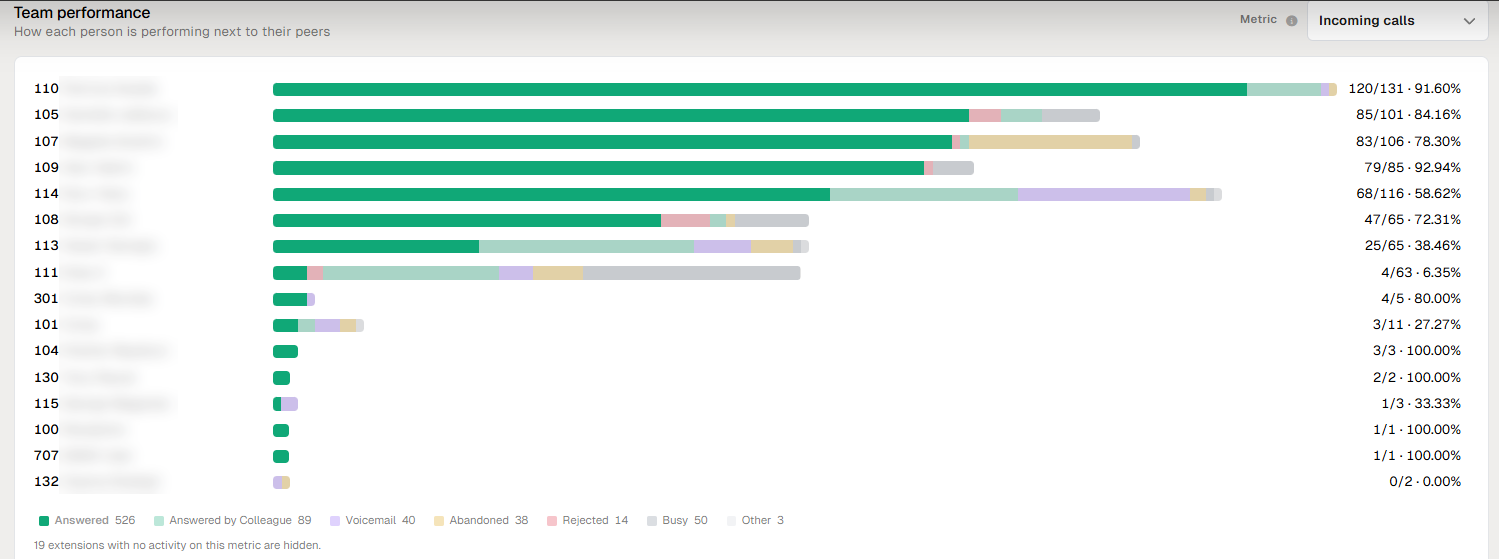
Team performance ranks each extension on one measure at a time. Choose it from the Metric menu: Incoming calls, Outgoing calls, Talk time, Avg call duration or Answer speed. For incoming calls, each bar shows what callers to that phone got, such as answered, answered by a colleague, voicemail or abandoned. Click a bar to see those calls.
Missed Calls and Callbacks
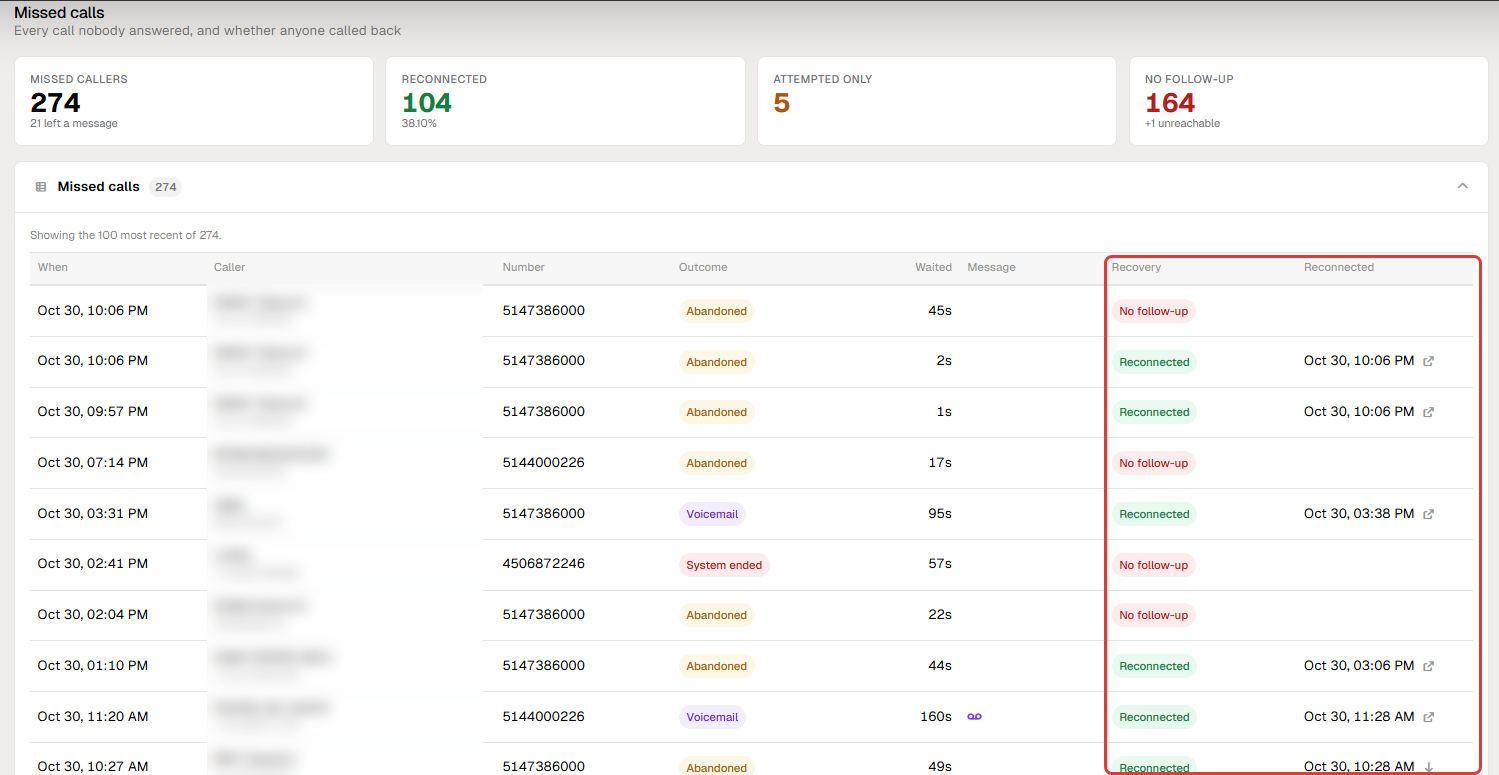
The last section lists every call nobody answered and shows whether contact was made again within 24 hours:
- Missed callers: unanswered incoming calls, and how many of those callers left a message.
- Reconnected: you called them back, or they called again and got through.
- Attempted only: someone called back, but the call didn’t connect.
- No follow-up: nobody called them back yet.
Open the Missed calls table to see each call: when it came in, the caller, the number they dialled, the outcome, how long they waited, whether they left a message, and its Recovery status. It’s a ready-made callback list.
Export to Excel
Click Export .xlsx to download the report for the period and numbers you selected. The workbook has a sheet for each view: Summary, By Interval, Previous Period, Busy Times, Wait Times, By Number, Missed Calls and By Extension.
Common Questions
How do I see which callers left a message?
Open the Missed calls table. Calls with the voicemail icon in the Message column left a message. Click any call to see its full path.
Why does a period show no data?
If a notice says when the data starts, there is no call history before that date for your account. Choose a later period.
Need help?
If something in your report doesn’t look right, or you would like help reading it, contact us at [email protected] or call 514-738-6000, option 2.