
Edit a Call Flow
On this page
A call flow is the path a call takes when someone dials one of your numbers: your business hours, your phone menu, who rings, and where calls go when you’re closed or nobody answers. You can change any part of it yourself in the EMAK Web App.
Before You Start
You need administrator access to the EMAK Web App (Sign In to the EMAK Web App). Your changes don’t reach callers until you publish them, so you can take your time.
Open Your Call Flow
- Sign in at client.emaktalk.com.
- In the left menu, under Call Routing, click Call Flows.
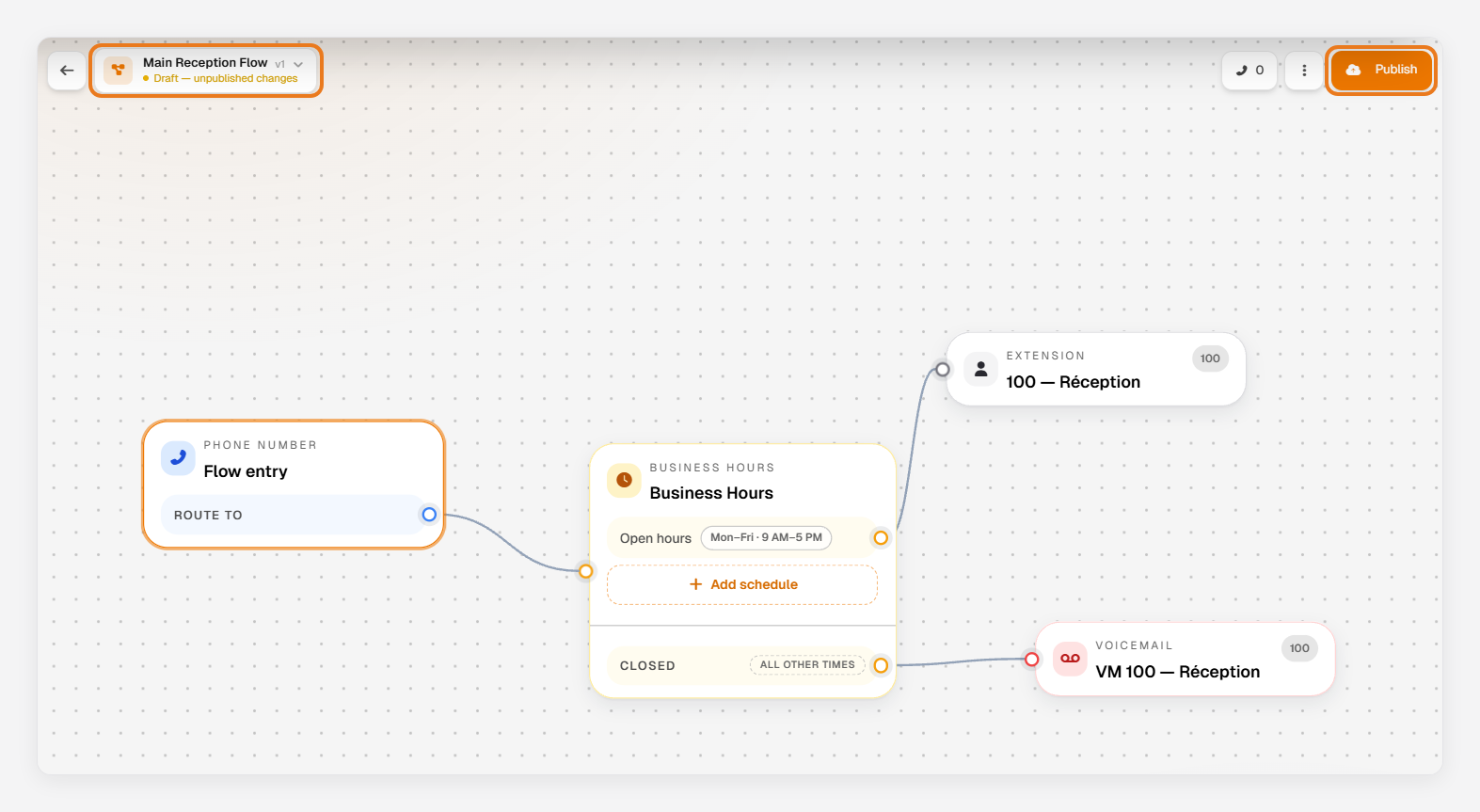
- Click the phone number. Its call flow opens: each box is a step, and the lines show where calls go next.
Change Your Business Hours
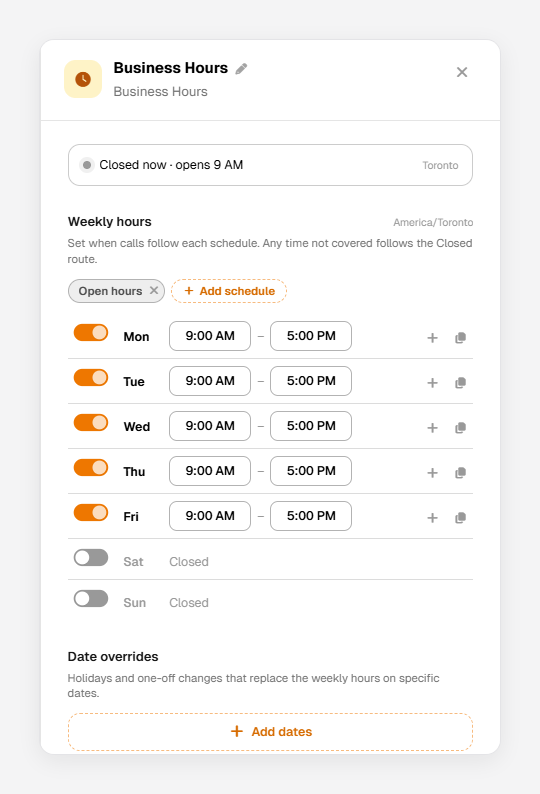
- Click the Business Hours step.
- Turn each day on or off, and change its opening and closing times. Calls outside these hours follow the Closed route.
- For a holiday or a one-off closure, click Add dates under Date overrides.
- Click Apply.
Change Where Calls Go
- Send a route to another step: drag from the circle at the end of the route onto that step. The new connection replaces the old one.
- Add a step after a route: click + at the end of the route and choose what happens next: ring an Extension or a Ring Group, play a Phone Menu, go to a Voicemail, forward to an External Number, and more.
- Add a key to a phone menu: click Add option on the menu step, then connect the new key to where it should go. Click the menu step itself to change its greeting.
- Remove a step: click it, then Remove node.
Publish Your Changes
While you work, your changes are saved as a draft, and the top of the page shows Draft — unpublished changes. Callers still get the published version.
- Click Publish at the top right.
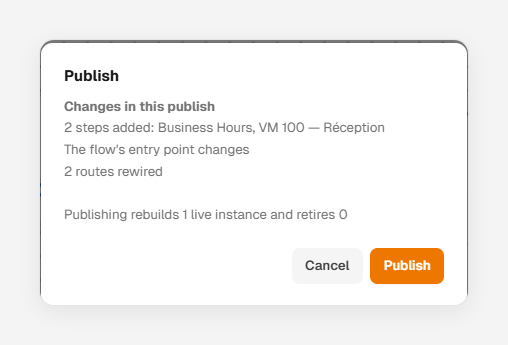
- Check the list of changes, then click Publish. The next call follows your new call flow.
Undo a Change
- Before publishing: click ⋮ at the top right, then Discard draft to go back to the published version.
- After publishing: click ⋮, then Version history. Choose an earlier version, click Restore this version, then Publish.
Would you rather we make a change for you? Write to us at [email protected] and tell us how you’d like your calls to work.
Was this article helpful?
Thanks for your feedback!