
See a contact’s activity and add notes
Each contact shows its history with your company: calls, texts, voicemail, faxes and your team’s notes, newest first. You can also call or text the contact from there.
See the activity
- On the Contacts page, open the contact. On a smaller screen, click the Activity tab.
- Read down the list, grouped by day: Incoming call, Outgoing call, Missed call (in red), Text received, Text sent, Voicemail, faxes, and notes under the name of the person who wrote them.
- Click a call to see more. When the call was recorded and you’re allowed to listen to recordings, you can play it and read its transcript.
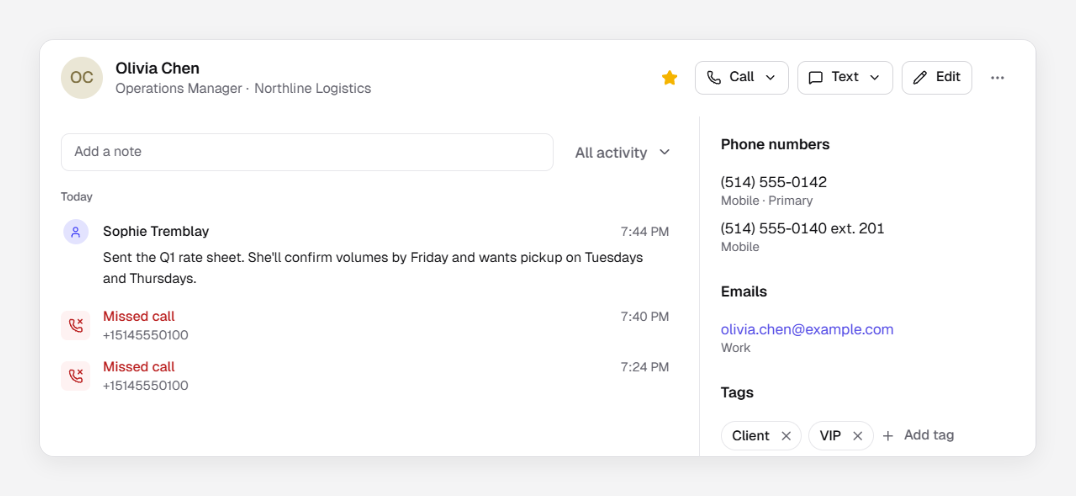
To see only one kind, click All activity and choose Calls, Texts, Voicemail, Fax, Notes or Changes. Changes shows who edited the contact and when; it isn’t part of All activity.
Note: You see the calls, texts, voicemail and faxes you can already reach elsewhere in the web app: calls to your extensions, text inboxes you use, voicemail boxes and fax lines you can open. Administrators see everything. Notes and changes are seen by everyone who can see the contact.
Add a note
- Click in Add a note and type. Press Shift+Enter for a new line.
- Press Enter. The note shows in the activity for your whole team. Undo removes it right away.
To change or remove one of your notes, click ⋯ on the note, then Edit or Delete. You can change only your own notes; administrators can change anyone’s.
Call or text a contact
- Call opens NeoChat, the web app’s calls and messages page, with the number filled in. Confirm to place the call. If the number has an extension, dial it yourself once the call connects.
- Text opens a new message to the number in NeoChat.
When the contact has several numbers, choose one. Numbers labelled Fax aren’t offered.
A call or text is missing
- It may be outside what you can see: ask an administrator to check.
- The call came from a number the contact doesn’t have. Add the number to the contact (see Add, edit and delete contacts).
- A number saved with an extension doesn’t collect the calls of its main line.
- Older activity loads as you scroll. When a filter says There was none in the recent activity., click Show older.