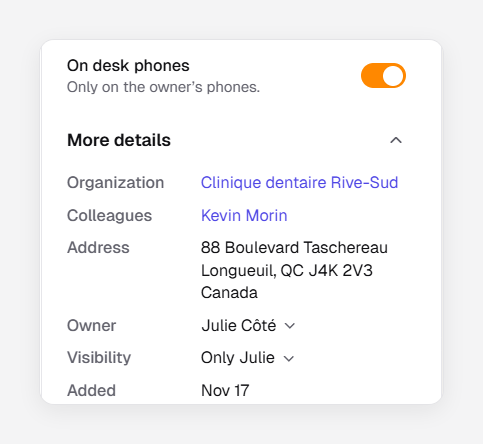
Choose who sees a contact
Contacts are shared with everyone in your company. You can make one private, change who owns it, and choose whether it shows on your desk phones.
Make a contact private
The contact’s owner or an administrator can do this.
- Open the contact and click More details.
- Beside Visibility, choose Only me. An administrator looking at someone else’s contact sees the owner’s name instead, for example Only Sophie.
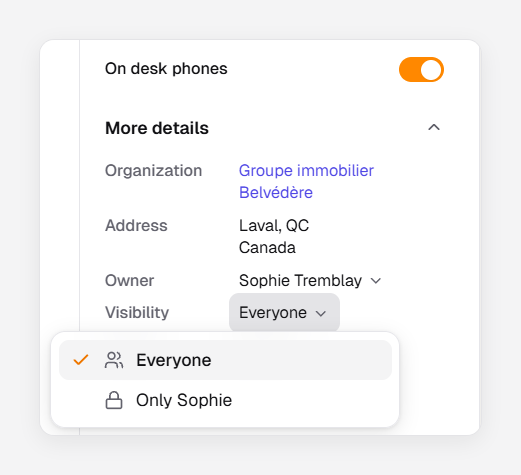
Only the owner and administrators now see the contact. Its calls and texts still attach to it. To share it again, choose Everyone.
Change who owns a contact
- Open the contact and click More details.
- Beside Owner, choose a person.
The contact’s owner or an administrator can do this; others see the owner without a menu. To change the owner of several contacts at once, select them and click Change owner.
Important: If you give one of your private contacts to someone else, you stop seeing it. You’re asked to confirm with Give.
Show or hide a contact on desk phones
Open the contact and, under Details, turn On desk phones on or off. When it’s on, the contact appears in the directory of your desk phones. Yealink phones refresh their directory within an hour or when you open it; other models, when they restart, and some have none.
- A private contact shows only on its owner’s phones: the phones assigned to the owner, or that carry the owner’s extension. A receptionist’s phone that also carries the owner’s extension shows it too.
- Desk phones show the first and last name, or the organization, not the display name.
- If your company shows caller names from your contacts on incoming calls, only shared contacts that are on desk phones are used. To turn this on, contact support.