
Import and export contacts
Bring your existing contacts into the EMAK Web App from a spreadsheet, or download them to use somewhere else. Importing and exporting are for administrators.
Before you start
- You need to be an administrator.
- Your file is Excel (.xlsx) or CSV, with up to 5,000 contacts and 10 MB. Files exported from Outlook or Google Contacts work as they are.
Import contacts
- On the Contacts page, click ⋯ beside New contact, then Import….
- If you’re starting a new file, click Download template. It has the right columns and a sheet of instructions.
- Put one contact per row. First Name and Phone Number are required. The other columns are optional: Last Name, Organization, Job Title, Phone Label, Extension, Email, Street, City, State / Province, Postal Code and Country.
- Drop the file in the box, or click browse and choose it.
- Check the review. It shows how many contacts are To add and how many are Ignored, with the reason for each ignored row.
- Click Import. The button shows how many contacts will be added.
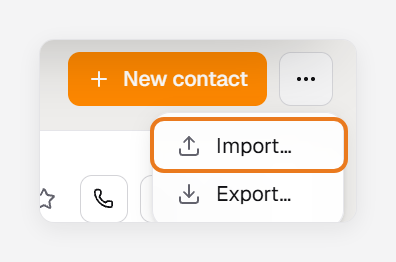
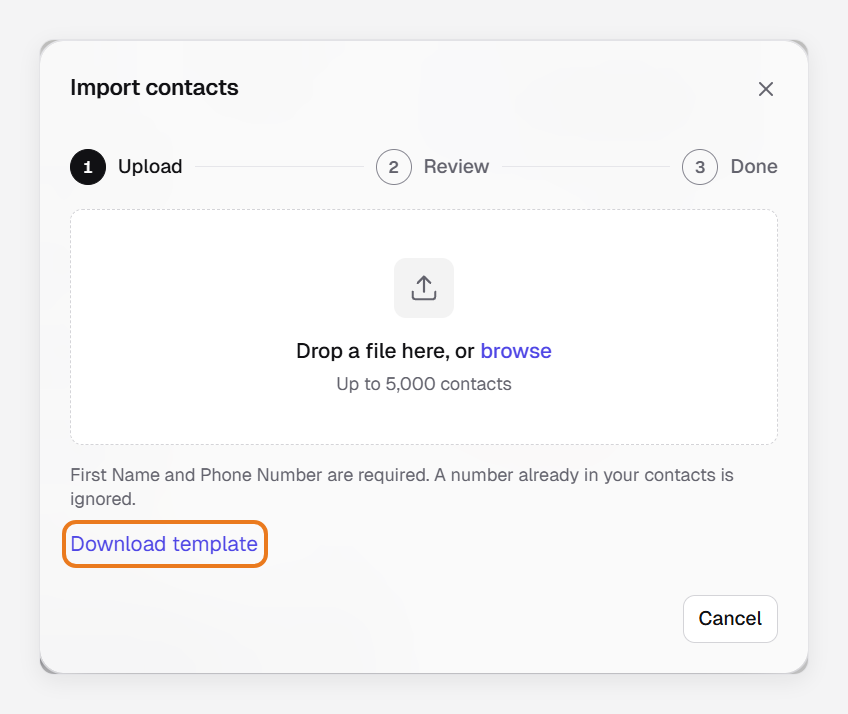
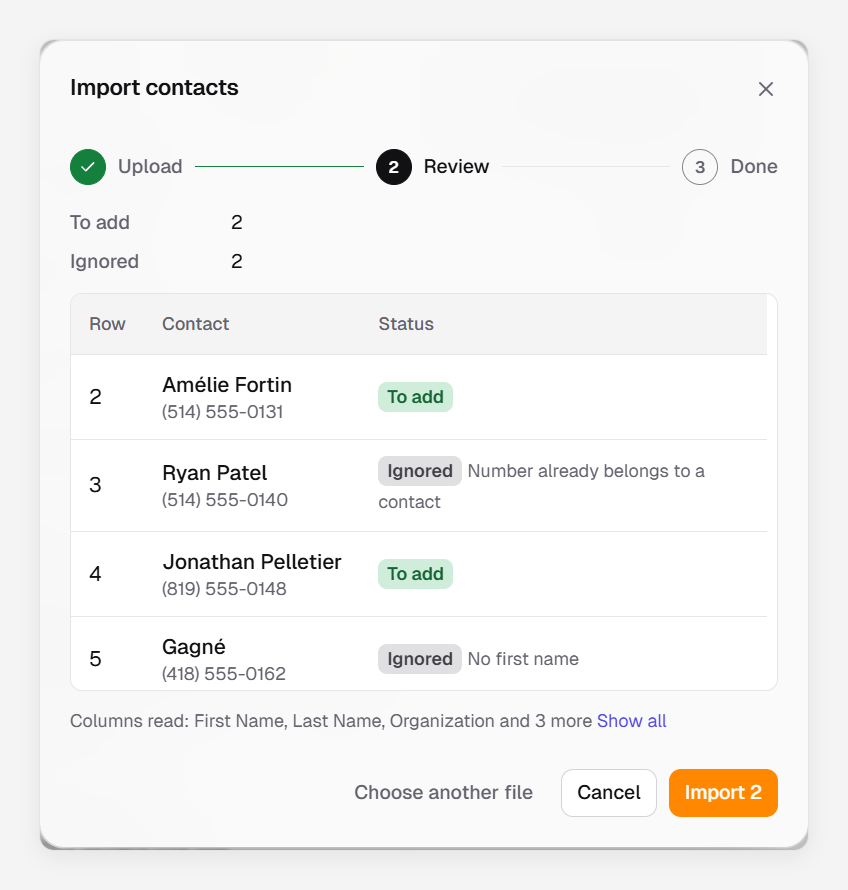
Imported contacts are shared with everyone, show on your desk phones, and you are their owner.
Important: A number that’s already in your contacts, with the same extension, is ignored. Nothing is overwritten or merged, so importing the same file again is safe.
Note: Each row makes one contact with one number, one email and one address. A Notes column isn’t imported.
Export contacts
- Click ⋯ beside New contact, then Export….
- Under Which contacts, choose Created by your team, or Auto-created too to add the contacts created from calls and texts. When a search or a filter is on, you can export only This search or This filter; when contacts are selected, Selected.
- Click Export. A CSV file downloads. It opens in Excel and can be imported into Outlook.
Note: The file has each contact’s names, organization, job title, up to three emails, phone numbers by type and first address. The display name is in the Nickname column. The Notes column doesn’t hold the notes in the activity; tags, stars, owner and activity aren’t exported.
A row was ignored
| On screen | What to do |
|---|---|
| Number already belongs to a contact | Nothing. The contact is already in your list; edit it there if needed. |
| Repeats row … | The file has the same number twice. Only the first row is imported. |
| No first name | Add a first name. For a business, put its name in First Name. |
| Phone number is missing | Add a number in Phone Number. |
| Phone number isn’t valid | Fix the number. A 10-digit number is read as North American; start other numbers with + and the country code. |
| Unknown phone label … | Use Work, Home, Mobile, Main, Fax or Other, or leave it blank for Mobile. Main is kept as a label of its own, shown as main. |
| Email address isn’t valid | Fix the email address or leave it blank. |
| Extension isn’t valid … | Use up to 20 digits, * and #. |