
Add, edit and delete contacts
Add the people and businesses you deal with, keep their details up to date, and remove the ones you no longer need. Anyone in your company can add contacts and edit shared ones.
Add a contact
- On the Contacts page, click New contact.
- Enter a First name, a Last name or an Organization. One of them is enough: a business can have its organization name alone.
- If you like, add a Job title. To show the contact under another name, such as a nickname, click Add display name.
- Under Phone numbers, choose a label (Work, Mobile, Home, Fax or Other) and type the number. For an extension, type x and the extension after the number, for example 514-555-0123 x214. To add another number, click Add number.
- If you like, click Add email and Add address.
- Click Save. The contact opens. It is shared with everyone, it shows on your desk phones, and you are its owner.
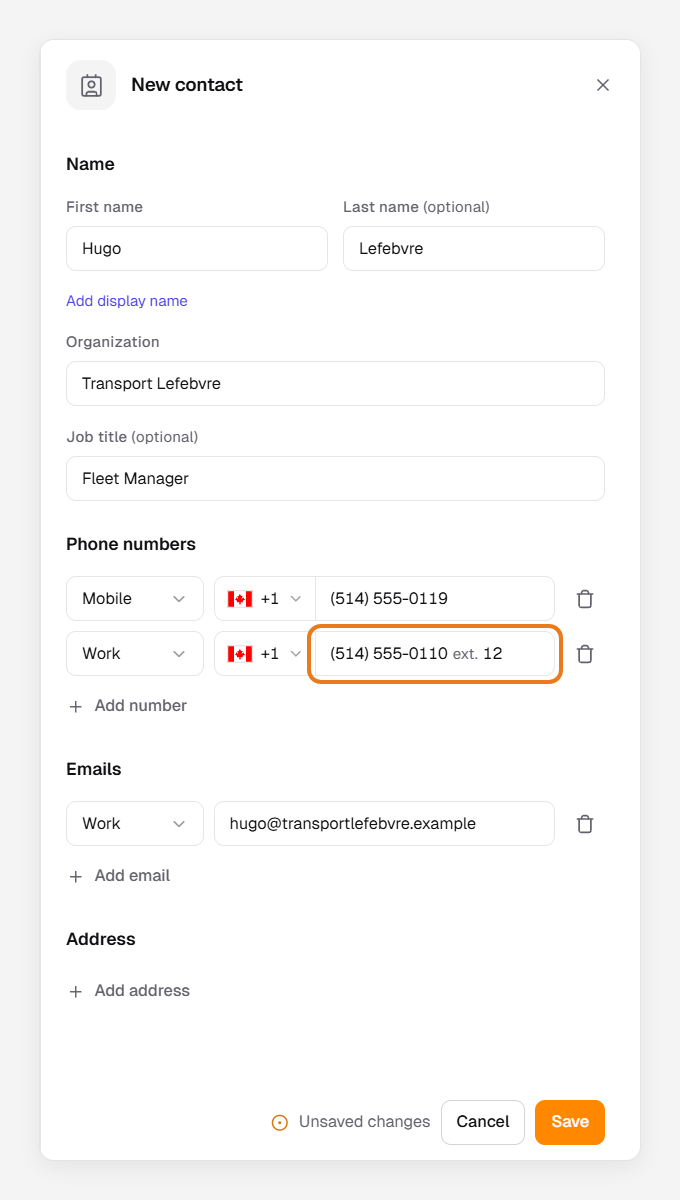
Note: The first number is the contact’s primary number (Primary on the contact). A number with an extension is someone behind that main line, so the same main line with another extension can be a different contact.
Edit a contact
- Open the contact.
- Click Edit, make your changes, then click Save.
To change only the name, click the name at the top of the contact, type the new one and press Enter. It saves by itself.
Delete a contact
The contact’s owner or an administrator can delete it. Auto-created contacts have no owner, so only an administrator can.
- Open the contact.
- Click ⋯, then Delete. The contact is removed for everyone right away.
- Changed your mind? Click Undo in the message at the bottom of the screen. The message stays for about 8 seconds.
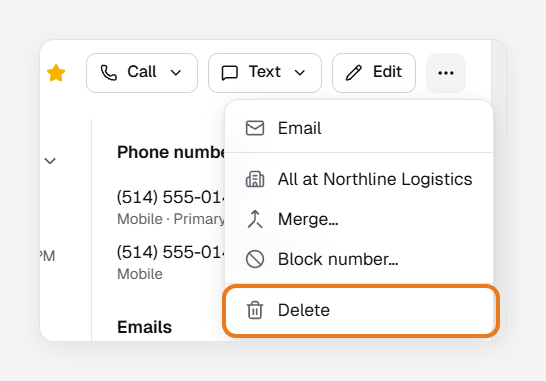
Warning: Once the message closes, you can’t bring the contact back. It also disappears from your desk phones.
To delete several contacts at once, select them and click Delete.
Warning: If you use Select all to select every contact in a long list, you are asked to type a confirmation, and there is no Undo.
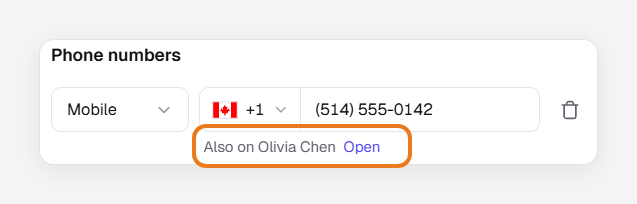
It says “Also on” under a number or email
Another contact already has this number. You can still save. Click Open to see the other contact. If it’s the same person, an administrator can merge the two.
Save is greyed out
Save turns on once you change something. If a message appears under a field, fix it: a contact needs a name or an organization, and each number and email must be complete.
The address didn’t save
An address is kept only when it has a Street, a City or a Postal code. Add one of them and save again.