
Find and organize your contacts
Search, filter and sort your contacts, keep them organized with stars and tags, and change several at once.
Search
Type in the search box at the top of the list. It finds names, organizations, job titles, emails and tags, and phone numbers once you type at least 3 digits. Search also finds contacts created automatically from calls and texts. To jump to the search box, press /.
Sort and filter
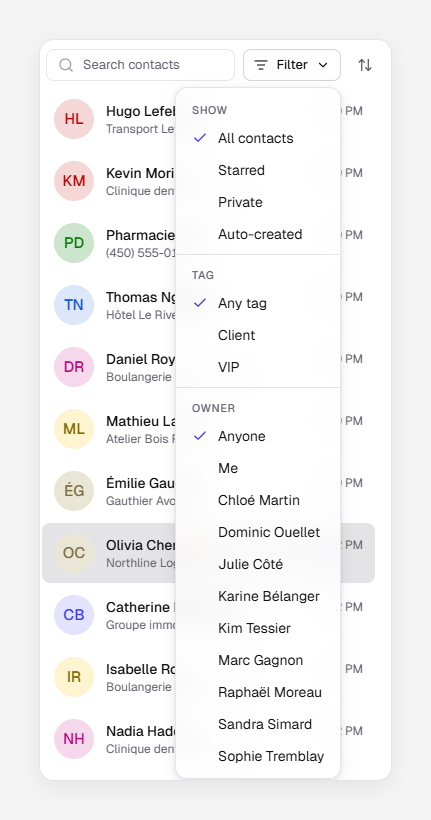
- Sort (the arrows beside Filter): Recent activity puts the latest call or text first. Name sorts A to Z, with starred contacts first.
- Filter: under Show, choose Starred, Private or Auto-created; under Tag, a tag; under Owner, Me or a teammate.
Each filter shows as a chip under the search box. Click its × to remove it, or Clear all.
See everyone at an organization
Open a contact, click ⋯, then All at and the organization’s name. The list shows only that organization’s contacts; remove the chip to see everyone again. Under More details, Colleagues lists up to three of them.
Star a contact
Click the star beside the contact’s name. Stars are shared: everyone sees them, and starred contacts come first when the list is sorted by Name.
Tag contacts
- Open the contact and, under Tags, click Add tag.
- Choose a tag, or type a new one and choose New tag.
Tags are shared by your whole company. To remove one, click its ×, then Undo if you change your mind.
Change several contacts at once
- Point to a contact’s picture in the list and check its box. On a phone or tablet, press and hold the contact.
- Check the others. Select all selects the contacts shown; click it again to select every contact in the list. Changing a filter, the search or the sort clears your selection, so filter first.
- Choose an action in the bar at the bottom: Add tag, Change owner, Save (for auto-created contacts), Merge (two contacts, administrators) or Delete.
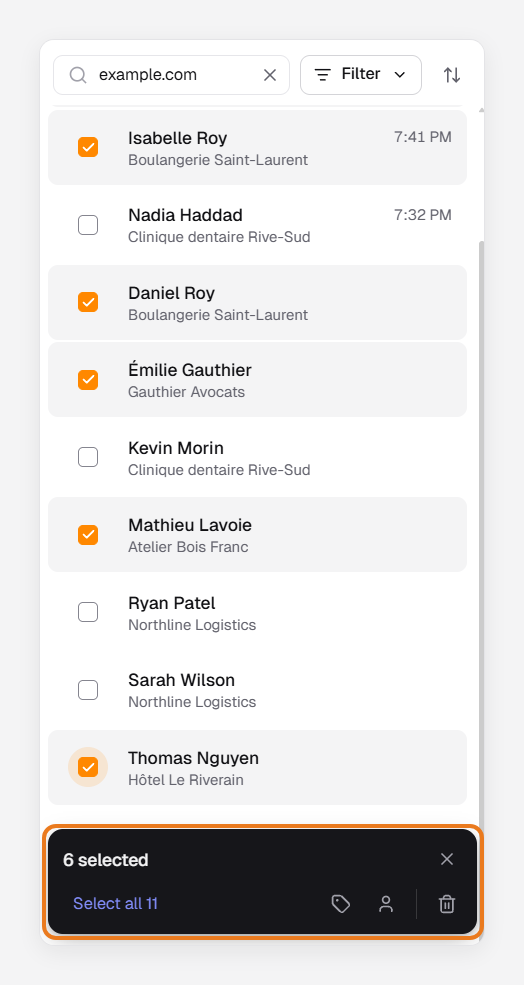
To clear the selection, press Esc or click the × on the bar.
Note: Unless you’re an administrator, you can change the owner of, or delete, only the contacts you own. If your selection includes other contacts, those buttons are greyed out.