
Save a caller as a contact
When a number you don’t have calls or texts you, EMAK creates a contact for it automatically, with the caller name the phone company sends. Save it to keep it with your other contacts.
Find auto-created contacts
On the Contacts page, click Filter, then under Show, Auto-created. A search finds them too. They’re kept out of your main list until you save them, they have no owner, and they don’t show on desk phones.
Save an auto-created contact
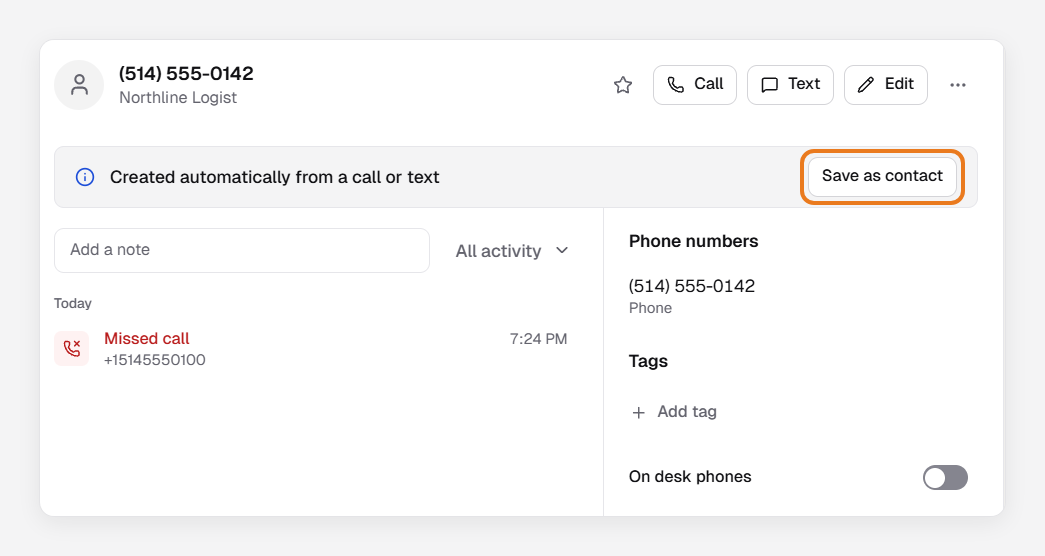
- Open the contact. It shows Created automatically from a call or text.
- Click Save as contact.
- Add a name and any other details. Save stays greyed out until you change something.
- Click Save.
The contact moves to your main list, shows on desk phones, and you become its owner. If you didn’t type a name, it keeps the caller name, unless that name is generic, such as WIRELESS CALLER; then it shows as its number.
Starring the contact, tagging it or adding a note also saves it; turning On desk phones on or blocking its number doesn’t. To save several as they are, select them and click Save.
When you save a contact with the same number
If you save a contact with a number that has an untouched auto-created contact, that auto-created contact and its history join yours. Nothing announces it: the auto-created contact leaves the list. This works only for numbers without an extension. If both stay, the contact shows Also saved as, and an administrator can merge them.