
Merge duplicate contacts
On this page
When the same person or business is saved twice, merge the two contacts into one. Numbers, emails, tags, notes and activity all move to the contact you keep. Merging is for administrators.
Merge two contacts
- Open the contact you want to keep.
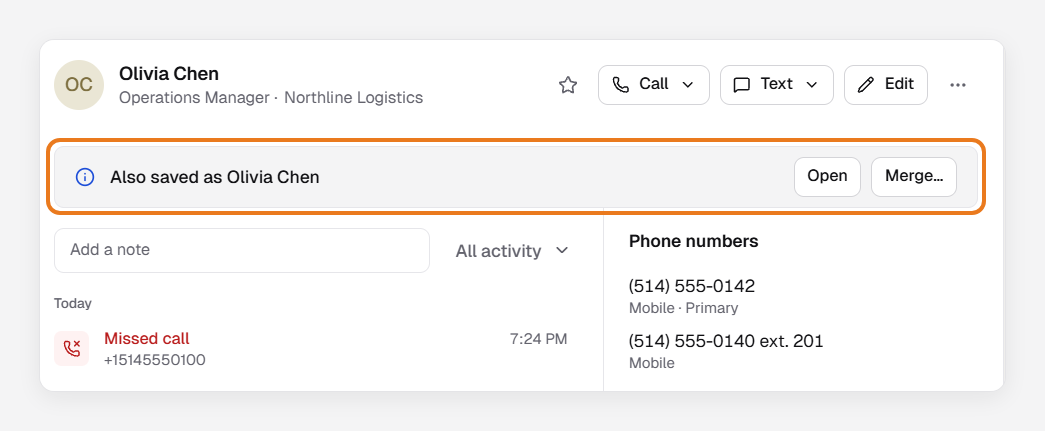
- If it shows Also saved as, click Merge… in that banner. Otherwise, click ⋯, then Merge…, and search for the other contact.
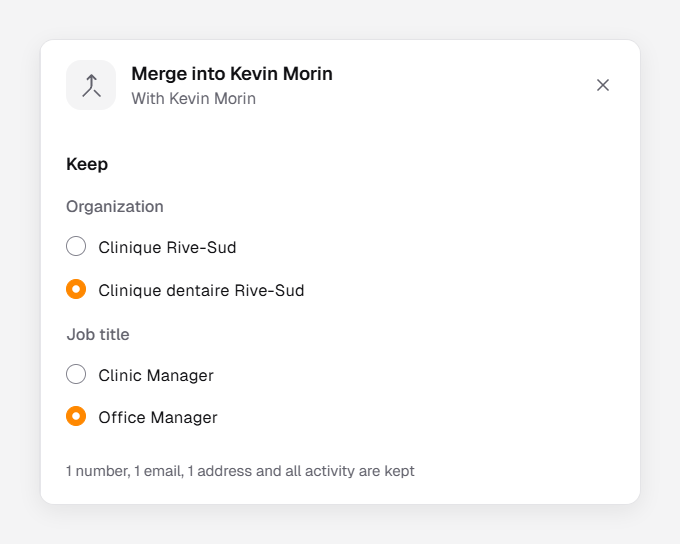
- Under Keep, choose which details to keep, such as the name, organization or job title. Only the details that differ are asked.
- Click Merge, then Merge again to confirm.
Warning: A merge can’t be undone. The other contact is deleted once its details move over.

You can also select two contacts in the list and click Merge. The contact kept is the first one in the list, unless one of them was created automatically: then the saved one is kept.
The merge failed
The contact that stands for one of your own users can’t be merged away. Merge the other contact into it instead.
Was this article helpful?
Thanks for your feedback!