
Managing the Conference Bridge
If your account has the Conference Bridge feature activated, you can monitor and manage active conference calls from the EMAK Telecom portal. This guide shows you how to find an active conference, view its participants, and moderate the call.
Before You Start
- You will need to log in to the EMAK Telecom portal with your username and password.
- If you do not have portal credentials, contact our support team at (514) 400-0226 and a member of the EMAK Telecom customer success team will be happy to help.
Conference Bridge Security
By default, your conference bridge has a two-digit PIN for moderators and a different two-digit PIN for participants. The PINs are different so that you can grant moderator privileges to specific callers without giving regular participants access to moderator controls.
Step 1: Open the Conference Centers Page
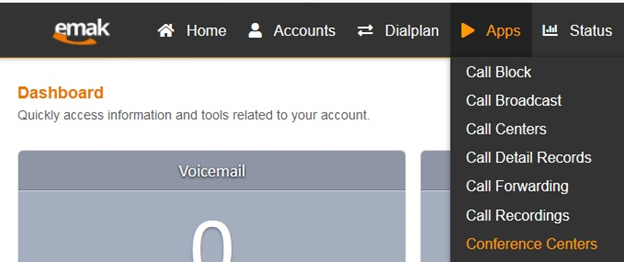
Once you are signed in to the portal, click Apps > Conference Centers.
Step 2: View Active Conferences
On the Conference Center page, click View Active to see any conference rooms that currently have callers in them.

Step 3: Open a Specific Conference Room
The View Active page shows the Member Count for each room. Click the Room name to open the active call.

Step 4: Moderate the Active Conference
On the Active Conference page, you can monitor the call and use the moderator controls on each participant. From here you can:
- Mute a caller so the room cannot hear them.
- Deafen a caller so they cannot hear the room.
- Kick a caller out of the room.

Conference Bridge FAQ
What is the difference between the moderator and participant PINs?
The moderator PIN gives a caller full control of the conference, including the ability to mute, deafen, and remove other participants. The participant PIN only lets a caller join and speak in the room. Always share the moderator PIN privately with people who should run the call.
What does “deafen” do?
Deafening a caller means the caller can still speak but can no longer hear the rest of the room. It is useful when a participant has joined accidentally or has background noise that you do not want broadcast back to them.
How do I remove a disruptive caller?
From the Active Conference page, find the participant in the list and click the kick action on their row. They will be disconnected from the room immediately.
I do not see the Conference Centers menu — what should I do?
The Conference Bridge feature must be activated on your account. Contact EMAK Telecom support at (514) 400-0226 to have it enabled.