
How to Create AI Generated Recordings
The EMAK Telecom Recording Studio turns text into a voice prompt using AI text-to-speech — handy for IVR menus, voicemail greetings, and music-on-hold messages without needing to record yourself or hire a voice talent. The whole flow takes three steps.
Before You Start
You need access to the EMAK phone portal with permissions to manage call routing. If you do not see Recording Studio in the menu, ask your administrator. Alternatively, see IVR voice samples to compare AI voices with self-recorded and professional voiceover options.
Step-by-Step: Create an AI Recording
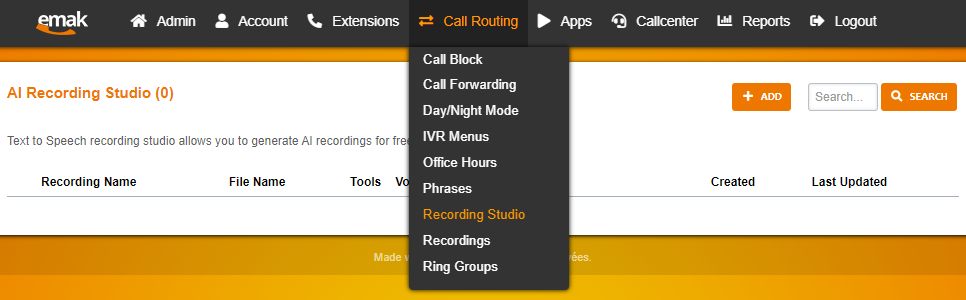
- Sign in to the portal and go to Call Routing → Recording Studio.
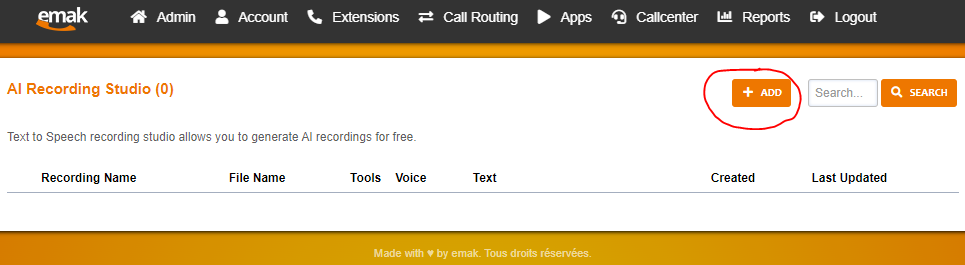
- Click the + Add button in the top right of the Recording Studio page.
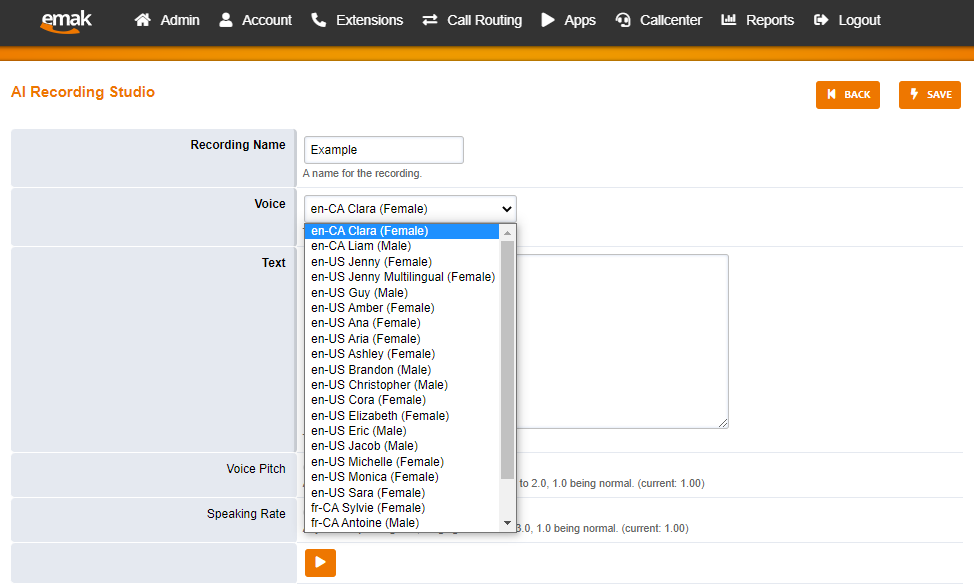
- Fill in the new recording form:
- Recording name — must be unique. Avoid reusing a name from an existing recording.
- Voice — pick the AI voice you want.
- Text — enter the script the voice will read.
- Click Save. The recording is generated and added to your library.

Manage Your Recordings
After you save, you are sent back to the recordings list. From there you can:
- Play — listen to a recording inline.
- Download — click the cloud icon to grab a .wav copy.
- Delete — select the checkbox at the left, then click the trash-can icon at the top right.

Tips for Better-Sounding AI Recordings
Add pauses with punctuation
Use combinations of spaces, commas, and periods to control pause length:
- Space — minimal pause
- Comma — short pause
- Period — longer, sentence-ending pause
Read phone numbers digit by digit
Without help, the AI will often read “514 400 0226” as a number. Add commas or periods between groups so each digit is spoken individually. Compare the same number with three different formattings:
AI Recording FAQ
Can I use AI recordings for my IVR menu and voicemail?
Yes. Once a recording is saved in the Recording Studio, it is available to attach to any prompt or menu in the call-routing builder, the same as a recorded or uploaded prompt. See IVR voice samples.
I cannot find the voice I want.
The voice list updates from time to time. If a voice you previously used has disappeared, contact EMAK Telecom support — they can confirm whether it has been replaced.
Why did my edit not change the voice on a saved recording?
Each recording is generated once at save time. If you change the text or voice, save it as a new recording (or delete and recreate). Phone systems referencing the old recording will keep using the previous audio until you swap them.
Can I record my own voice instead?
Yes — see How to Create a Recording for the upload-your-own option, or IVR voice samples for professional voiceover artist options.
What languages are supported?
The voice list typically includes English and Canadian French voices. Choose the voice that matches your prompt’s language for best pronunciation.