
How to Set Up a Yealink Cordless Phone
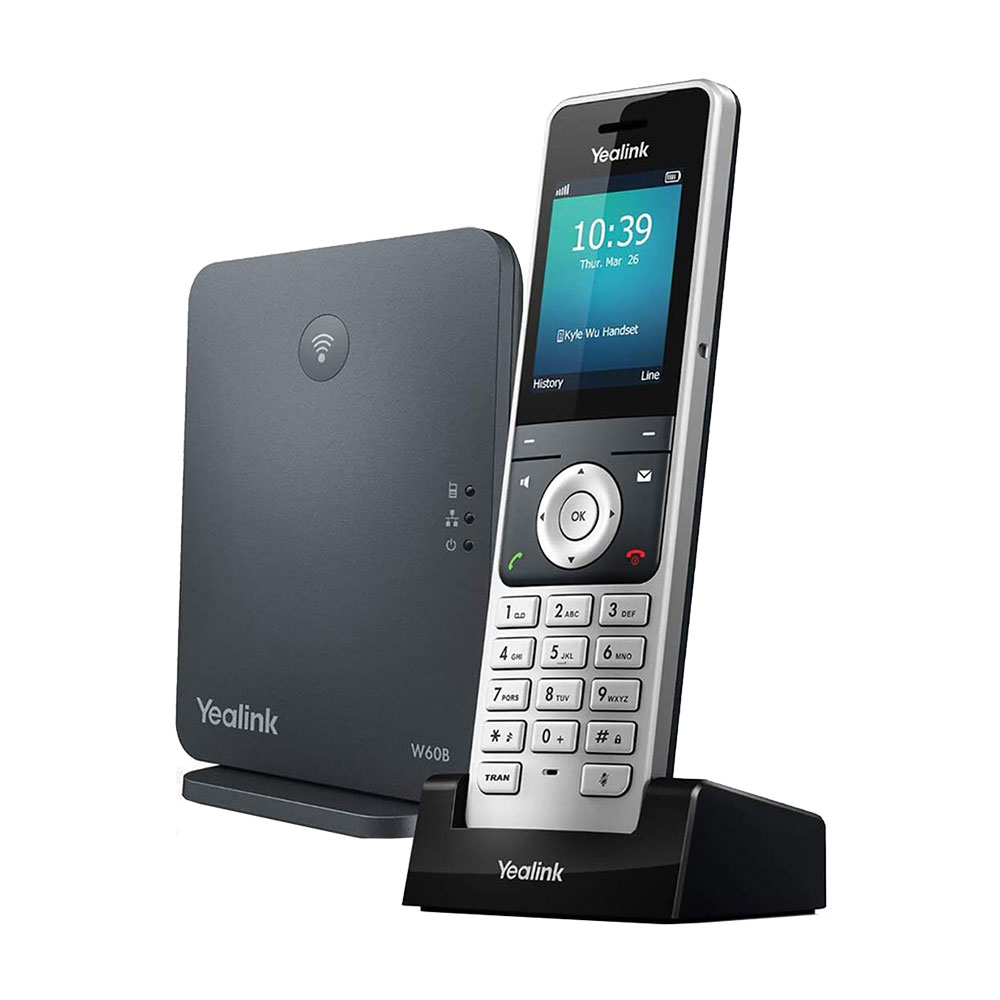
Yealink cordless phones come in two flavours: a dedicated DECT base station (such as the W60B) with one or more handsets, and the DD10K USB adapter that turns a compatible Yealink desk phone (such as the T54W) into a DECT base. This guide walks through both setups, including registering additional handsets.
DECT Base Station Setup
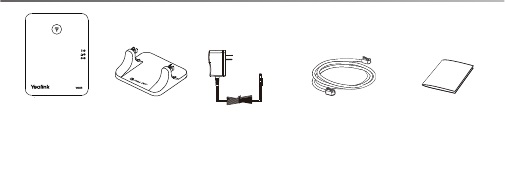
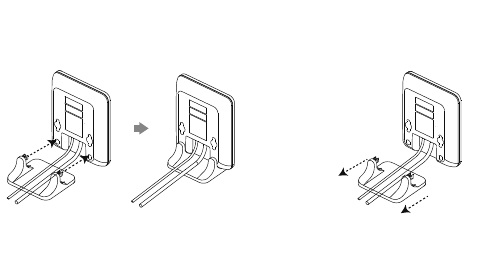
Step 1: Power Up the Hardware
- Plug the base station into power.
- Power on the handset.
- Plug in the handset’s charging cradle.
Step 2: Register the Handset to the Base
- Long-press the registration button on top of the base station until the registration LED (top LED) flashes slowly.
- Press REG. on the handset. The phone should display Easy Pairing and complete automatically. If it does, skip to step 7.
- If Easy Pairing does not appear, press OK to enter the main menu, then go to Settings > Registration > Register Handset.
- Select the desired base and press the OK soft key. The handset starts searching for the base.
- Press the OK soft key once the handset finds a base.
- Enter the base PIN (default: 0000) and press the Done soft key.
- The handset shows Handset subscribed when registration succeeds.
- If you have a second or third handset, repeat the process for each one.
DD10K USB Adapter Setup
The Yealink DD10K plugs into a desk phone (T54W and similar models) and turns it into a DECT base for cordless handsets.
Important: When the DD10K is first inserted, the desk phone may run a firmware upgrade that takes 15 minutes or more. Do not power off the phone or remove the DD10K during the upgrade.
Step 1: Insert the DD10K
Insert the DD10K adapter into the USB port located behind the screen of the desk phone.


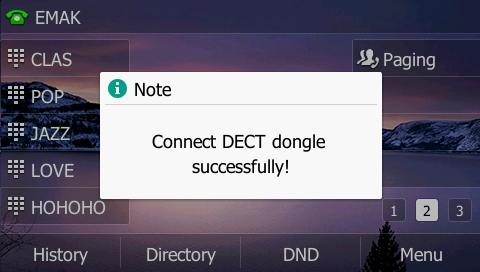
Once the upgrade finishes, the phone briefly shows the DD10K confirmation screen for about 3 seconds before returning to normal:
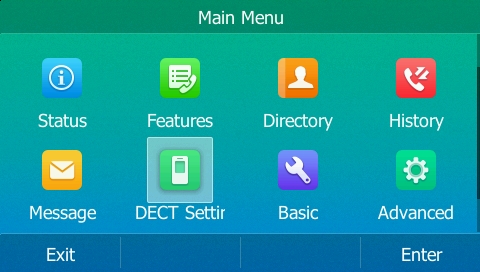
Step 2: Open DECT Settings on the Desk Phone
On the desk phone, go to Settings > Basic > DECT Settings.
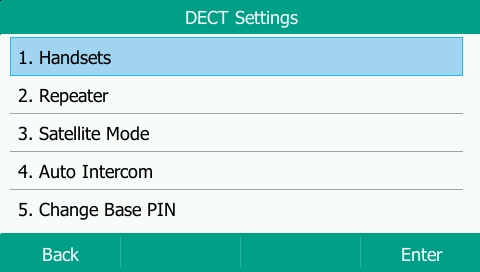
Open Handsets.
Step 3: Register Each Cordless Handset
Pick the handset slot you want to register (usually start with Handset 2 — the desk phone itself counts as Handset 1 with the DD10K).
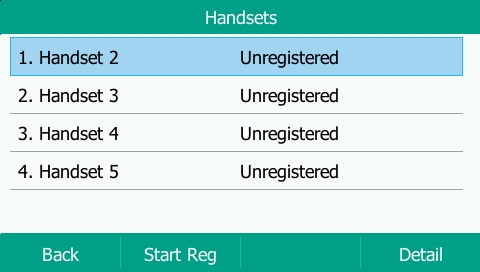
Press Start Reg on the desk phone. On the cordless handset, press Register and then OK to subscribe to the base.
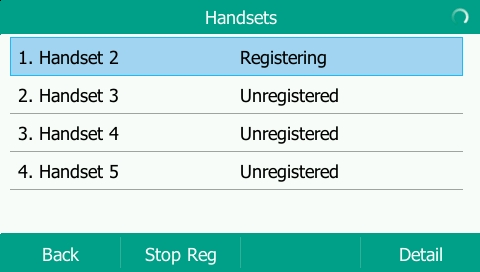
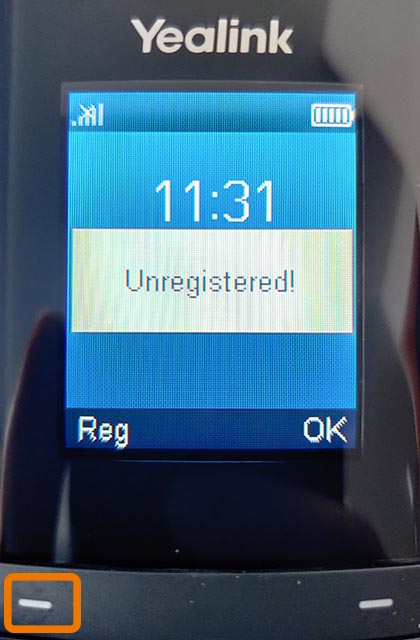
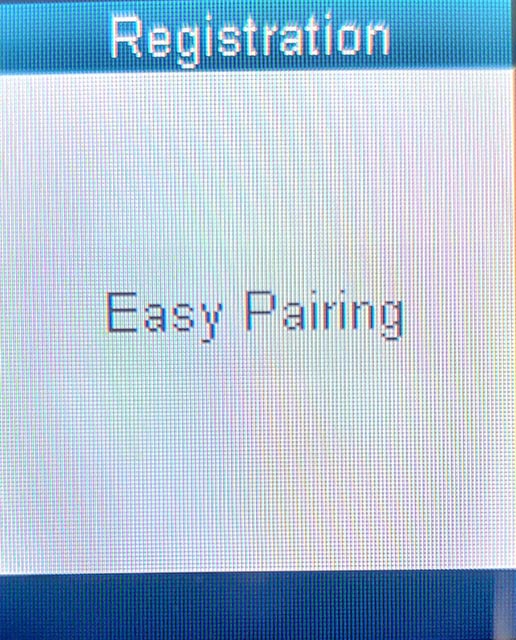
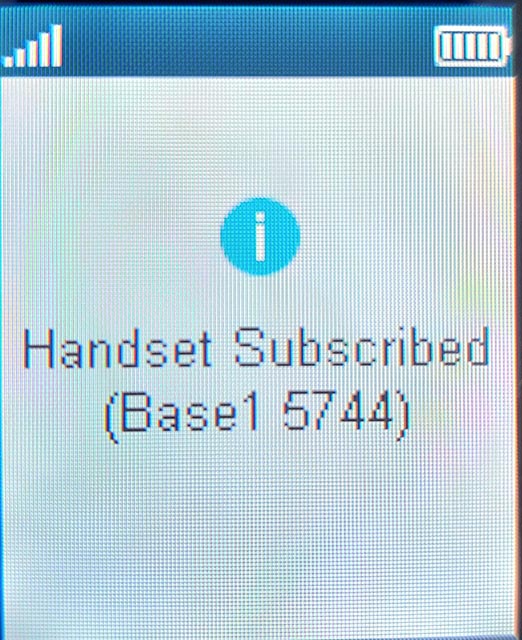
Once the handset is registered, it is ready to use.
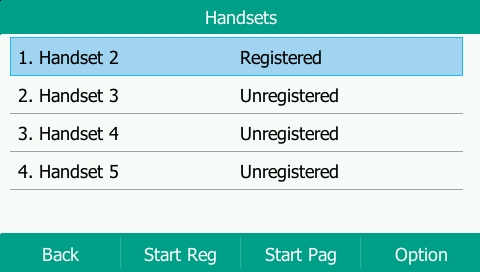
Important Notes
- With the DD10K, the desk phone is treated as Handset 1, so the first cordless handset becomes Handset 2.
- By default, the desk phone is assigned all of your phone lines. You will likely want only some lines on the desk phone and the rest on the cordless handsets — contact EMAK Telecom support and we will reassign lines for you.
Yealink Cordless FAQ
What is the default base PIN?
The default base PIN is 0000. We recommend changing it to a random PIN once setup is complete to prevent unauthorized handsets from being registered.
How many handsets can I register to one base?
The Yealink W60B base supports up to 8 handsets. The DD10K USB adapter supports up to 4 handsets. Check your specific model’s datasheet to confirm.
What’s the difference between Easy Pairing and manual registration?
Easy Pairing handles registration automatically when both devices are nearby and in pairing mode. Manual registration through the handset menu is the fallback when Easy Pairing doesn’t trigger — both methods produce the same result.
I bought the DD10K but my desk phone won’t accept it — what’s wrong?
The DD10K is only supported on specific Yealink desk phone models such as the T54W. If your model isn’t compatible, the phone won’t show the DECT Settings menu after the firmware upgrade. Contact EMAK Telecom support and we’ll confirm compatibility for your phone.